- In your Windows search bar, type “CONTROL PANEL” and hit Enter

- Select “PROGRAMS”
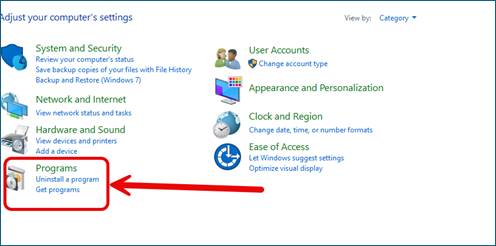
- Select “PROGRAMS AND FEATURES”

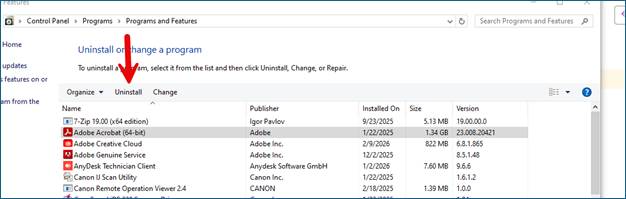
- Select “ADOBE ACROBAT” in the list, click Uninstall. (NOTE: You must have all O365 applications closed when doing so)
- Once uninstalled, open ADOBE CREATIVE CLOUD. You can also search for it in the search bar.
- Navigate to the left side panel and select “APPS” then find ACROBAT and select INSTALL:
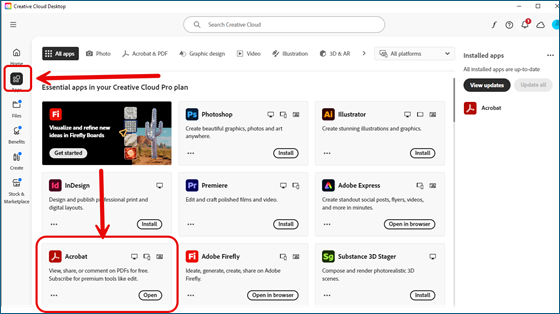
**NOTE: It will take some time for this to install, please give it at least 30 minutes to fully download while Creative Cloud is left open. Ignore any errors saying to restart the cloud. It will eventually go through.