Below are the steps on how to connect to Eastern's Wi-Fi networks.
- How to log into the “WarriorNet” Wi-Fi Network using your ECSU-provided account credentials for the options below. The "WarriorNet" network is used for student and staff personal devices (laptops, phones, tablets, etc.) and ECSU Managed Wi-Fi Devices.
- How to log into the "ECSU-Public" Wi-Fi Network for the options below.
For iPhones/iPads:
-
Click the “WarriorNet” Wi-Fi network.
-
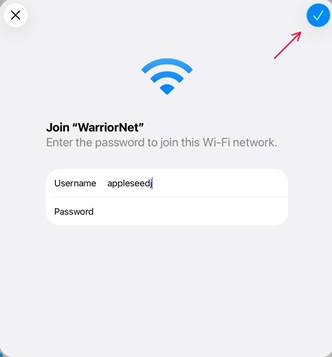
Sign in with your Eastern username and password.
-
Your username is everything before the "@" in your Eastern email address
-
Example: if your email is appleseedj@easternct.edu, your username is appleseedj
-
-
Click the check mark to connect.
-
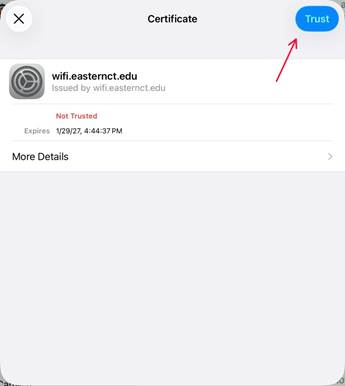
A certificate will pop up.
-
Click trust in the top right.
You are now connected!
-
Click the “WarriorNet” Wi-Fi network
-
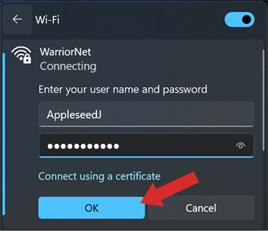
Sign in with your Eastern username and password.
-
Your username is everything before the "@" in your Eastern email address
-
Example: if your email is appleseedj@easternct.edu, your username is appleseedj
-
-
Click OK
-
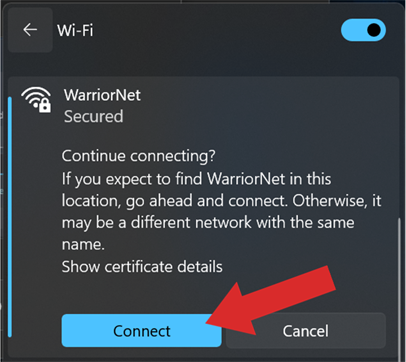
Click Connect
You are now connected!
For Apple Laptops:
-
Click the “WarriorNet” Wi-Fi network
-
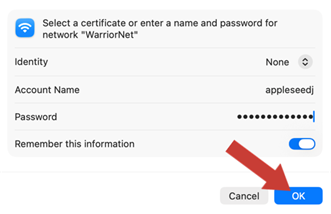
Sign in with your Eastern username and password.
-
Your username/account name is everything before the "@" in your Eastern email address
-
Example: if your email is appleseedj@easternct.edu, your username is appleseedj
-
-
Click OK
-
Click Continue to accept the certificate
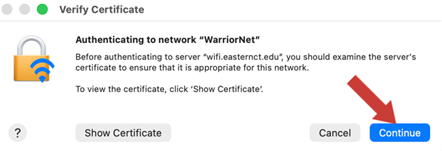
You are now connected!
For Samsung Phones:
-
Click the “WarriorNet” Wi-Fi network
-
Make sure EAP method is à “PEAP”
-
It is this way by default
-
-
Sign in with your Eastern username and password.
-
Your username/identity is everything before the "@" in your Eastern email address
-
Example: if your email is appleseedj@easternct.edu, your username is appleseedj
-
-
CA Certificate must be set to “Don’t Validate”
.png)
5. Click Connect
You are now connected!
For Google Pixel Devices
-
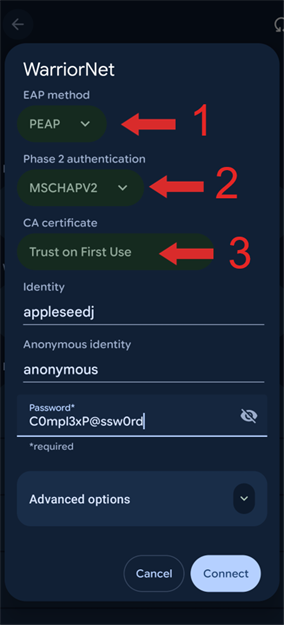
EAP Method: PEAP
-
Phase 2 Authentication: MSCHAPv2
-
CA Certificate: Trust on first use
-
Sign in with your Eastern username and password.
-
Your username/identity is everything before the "@" in your Eastern email address
-
Example: if your email is appleseedj@easternct.edu, your username is appleseedj
-
-
A security certificate will pop up —> Click Trust
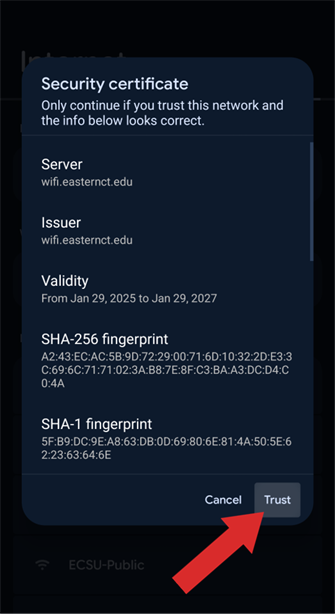
You are now connected!
“ECSU-Public” Wi-Fi Network
This network is for guests and visitors.
Click the ECSU-Public SSID
Wait for the pop up to pop up
-
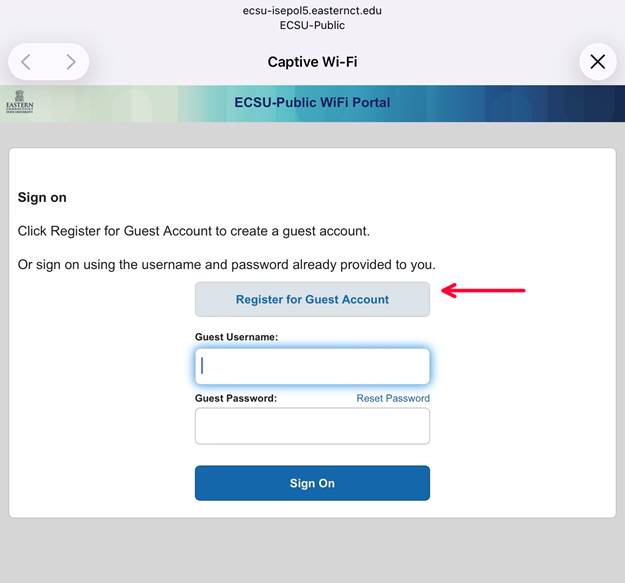
Click Register for Guest Account
- NOTE: If you already have guest credentials from a previous sign in within the last 24 hour window, you can use them in the “Guest Username” and “Guest Password” fields.
-
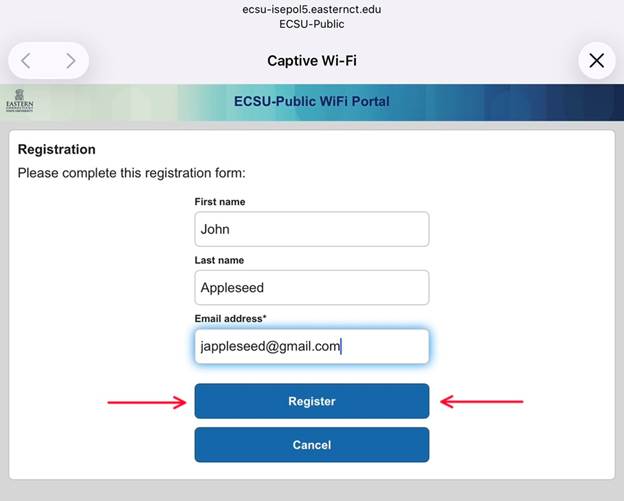
Enter Your First Name, Last name, and email address, and then click Register
-
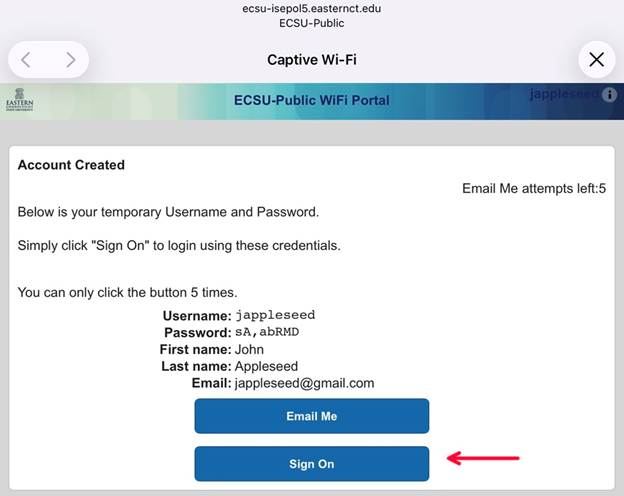
Click Sign On
-
NOTE: The username and password displayed on this page, can be re-used for other devices that you plan to put on the ECSU-Public network. You can put these credentials in, in the beginning of step one, instead of clicking “Register for Guest Account”
-
These guest account credentials will be sent to the associated email. The credentials will be valid for 24 hours.
-
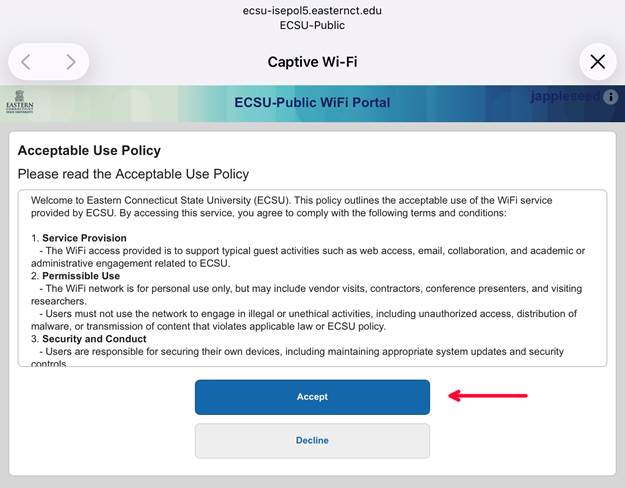
Accept the Acceptable Use Policy
-
Click Continue
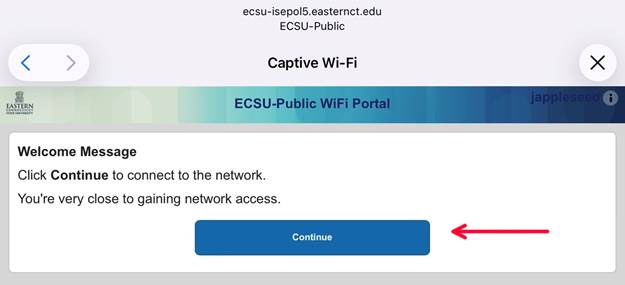
-
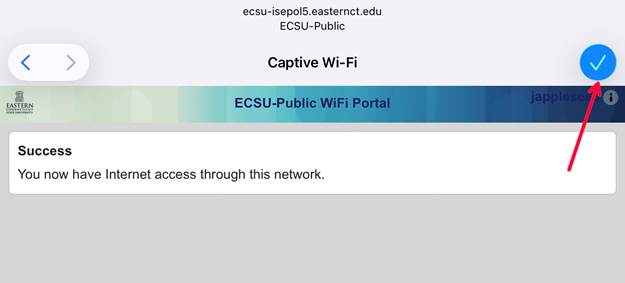
Click out of the pop-up if it does not close automatically
“Eduroam” Wi-Fi Network
Visitors that have been assigned login credentials at other educational institutions can login to this network using those credentials.
The instructions are the exact same process as “WarriorNet”
-
You must use your full home institution email address and password to sign into Eduroam
How to Connect a Gaming/Smart Device to ECSU-Public:
1. Obtain the Mac Address of your device
- It is in a format like this: 76:73:af:bc:82:fb
- Usually it is under the network settings of a device
- Google is the best tool to find the location of the device’s mac address
- Example: “How to find mac address of Playstation 5”
2. Scan the QR code -OR- go to: mydevices.easternct.edu
.png)
3. Scroll Down and Accept the “Acceptable Use Policy”
.png)
4. Press Continue
.png)
5. Click the “Add” button
.png)
6. Enter your device details, and then click “Submit”
.png)
7. Once you see this screen, your device has been successfully registered. You will see them listed in the format as shown below.
.png)
8. On the device you can now join the “ECSU-Public” WIFI network.
- NOTE: If you want to add more gaming/smart devices (up to 8 total devices) click the add button in step 7 and repeat the process.