Faculty Advising (eWeb)
Beginning October 2025, eWeb (Self-Service) has been updated. The following guide gives instructions for various Faculty Advising tasks:
Advisee List
Student Transcript
Student Registration Holds and PIN
Student Schedule from the Student Profile
Student Schedule Lookup Card - *NEW*
Student Degree and Transfer Evaluation
For more guides, see Article 730: Using eWeb – Faculty.
To access your Advisee List:
- Go to eWeb. See Article 730: Using eWeb – Faculty for instructions.
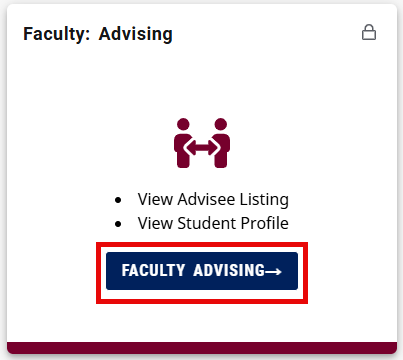
- Locate the Faculty: Advising card and click Faculty Advising.
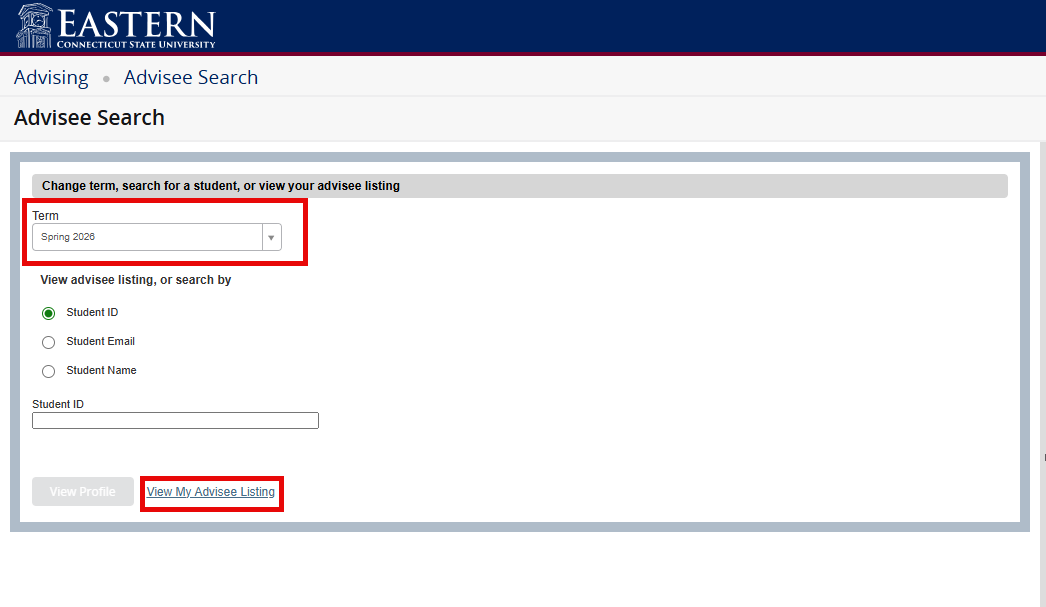
- Select the correct term and click View My Advisee Listing. You can now see a list of your advisees.
Note: The Advisee Listing can be sorted and filtered. To sort, click on the arrows next to any column. To filter, click on the filter button in the upper right corner. The below example sorts by name and filters for all students with a Student Status of Active. This will remove all Inactive students from the results.
.png)
To view a student transcript:
- Go to eWeb. See Article 730: Using eWeb – Faculty for instructions.
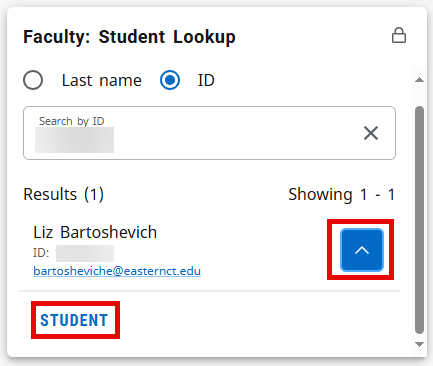
- Locate the Faculty: Student Lookup card.
- Type the student’s last name or ID number, then click enter.
- From the list of students, click on the blue box next to the correct student. Then click student. This will bring you to the student’s profile.
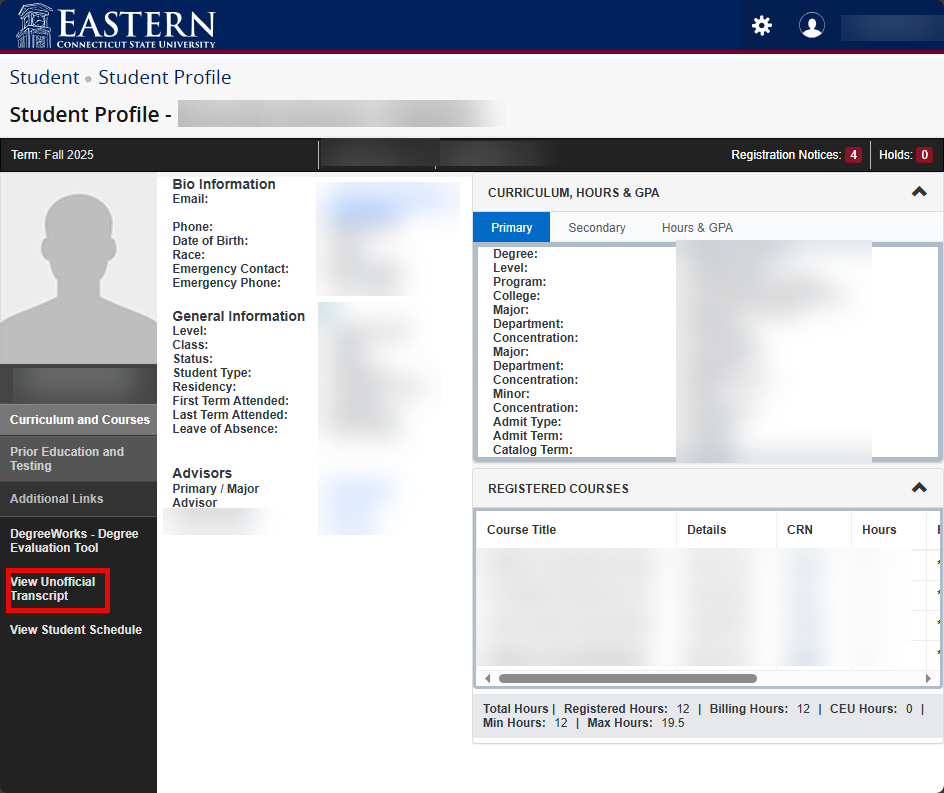
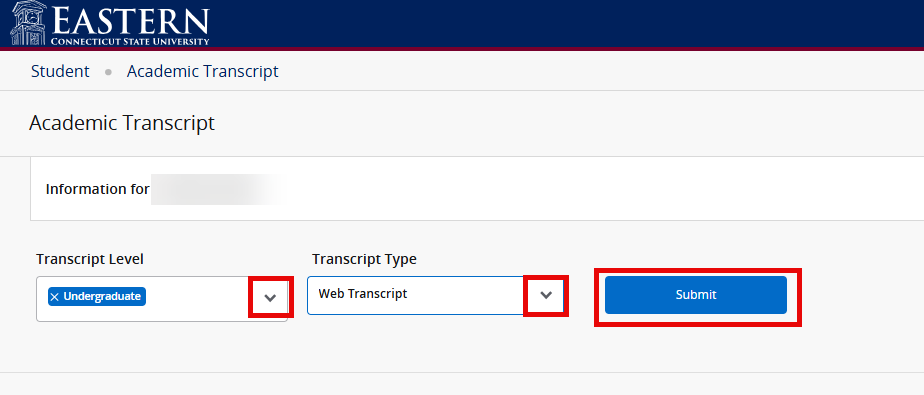
- From the menu on the left, click View Unofficial Transcript. Select the correct transcript level and type, then click submit.
To view student registration holds or PIN:
- Go to eWeb. See Article 730: Using eWeb – Faculty for instructions.
- Locate the Faculty: Advising card and click Faculty Advising.
- Select the registration term. Type the student’s last name or ID number, then click view profile.
.png)
- For holds, click Holds in the upper right corner.
- For PIN, click Registration Notices in the upper right corner.
.png)
View a student schedule from the Student Profile:
- Go to eWeb. See Article 730: Using eWeb – Faculty for instructions.
- Locate the Faculty: Student Lookup card.
- Type the student’s last name or ID number, then click enter.
- From the list of students, click on the blue box next to the correct student. Then click student. This will bring you to the student’s profile.
- From the menu on the left, click View Student Schedule.
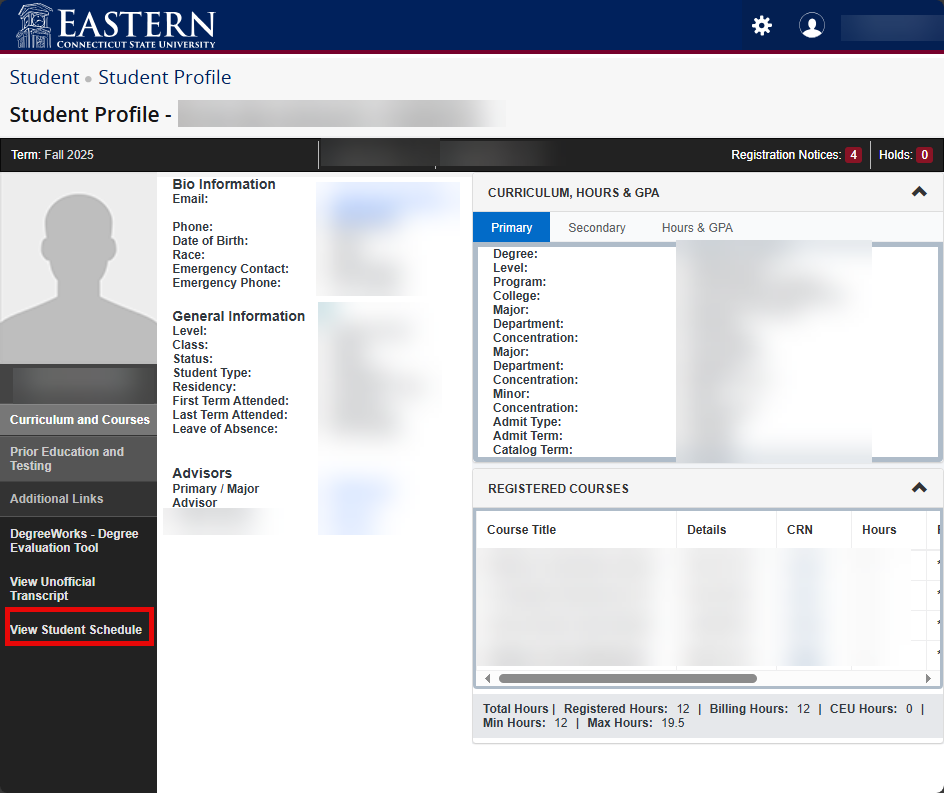
- Select the proper term and click submit.
Note: You may need to search for the student again on this page.
- You can now see the student’s schedule.
View a student schedule using the student schedule lookup card:
- Go to eWeb. See Article 730: Using eWeb – Faculty for instructions.
- Search for Student Schedule Lookup Card.
- Click Save card to homepage in the upper right corner so it appears at login when using eWeb.
.png)
- Click View Student Schedule on the card which opens a search page.
- You can search by Eastern ID or by student name — only one method can be active at a time.
Search By Eastern ID — Enter the student's Eastern ID and press Enter or click Search. The schedule loads immediately.
Search By Name — Enter a last name (or the beginning of one — e.g., Smi returns Smith, Smits, Smithwick, etc.) and optionally a first initial. Press Enter or click Search, then select the student from the results list.
.png)
- When searching by name, a list of matching students is displayed showing each student's name, Eastern ID, and email address. Click any row to load that student's schedule.
.png)
- Once a student is selected, their schedule is displayed for the current or next Fall/Spring semester by default. The schedule includes CRN, course, title, credits, days/times, location, instructor, and dates.
.png)
- Use the term dropdown to view a different semester. Available options include one previous term, the current term, and up to two upcoming terms. The schedule reloads automatically when a new term is selected.
- Click Print in the top-right corner to open a print-ready version of the schedule formatted for landscape printing. This includes the student name, Eastern ID, term, credit hours, and full course table.
To view a student degree evaluation or transfer evaluation:
- Go to eWeb. See Article 730: Using eWeb – Faculty for instructions.
- Locate the Faculty: Quick Links card.
- Click Degree Evaluation.
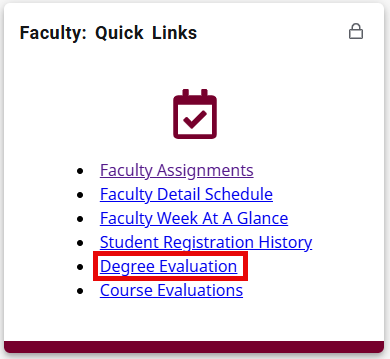
- Type student ID or use Advanced Search to locate the student.
- You can now view the degree evaluation. Transfer courses note specific articulation.
If you encounter errors, contact the DTS Helpdesk at helpdesk@easternct.edu or (860) 465-4346.